
Managing your Google My Business (GMB) profile is crucial for maintaining your online presence. But you don’t have to do it alone—adding team members or marketing partners to help manage your GMB listing can make life easier. In this guide, we’ll walk you through the simple steps to add a user to your GMB location.
Step-by-Step Guide: Adding a User to GMB
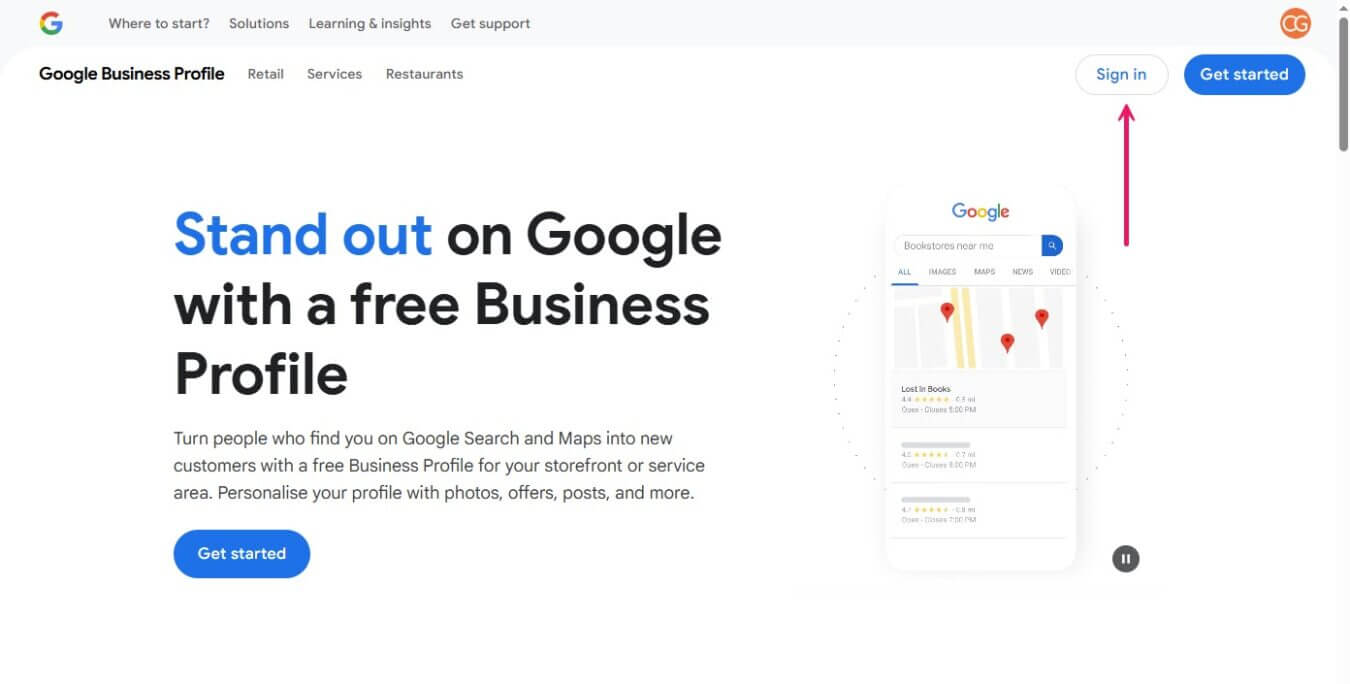
Step 1: Sign in to your Google My Business account
Visit the Google Business Profile Manager and log in / Sign in with the Google account that manages your business listing.
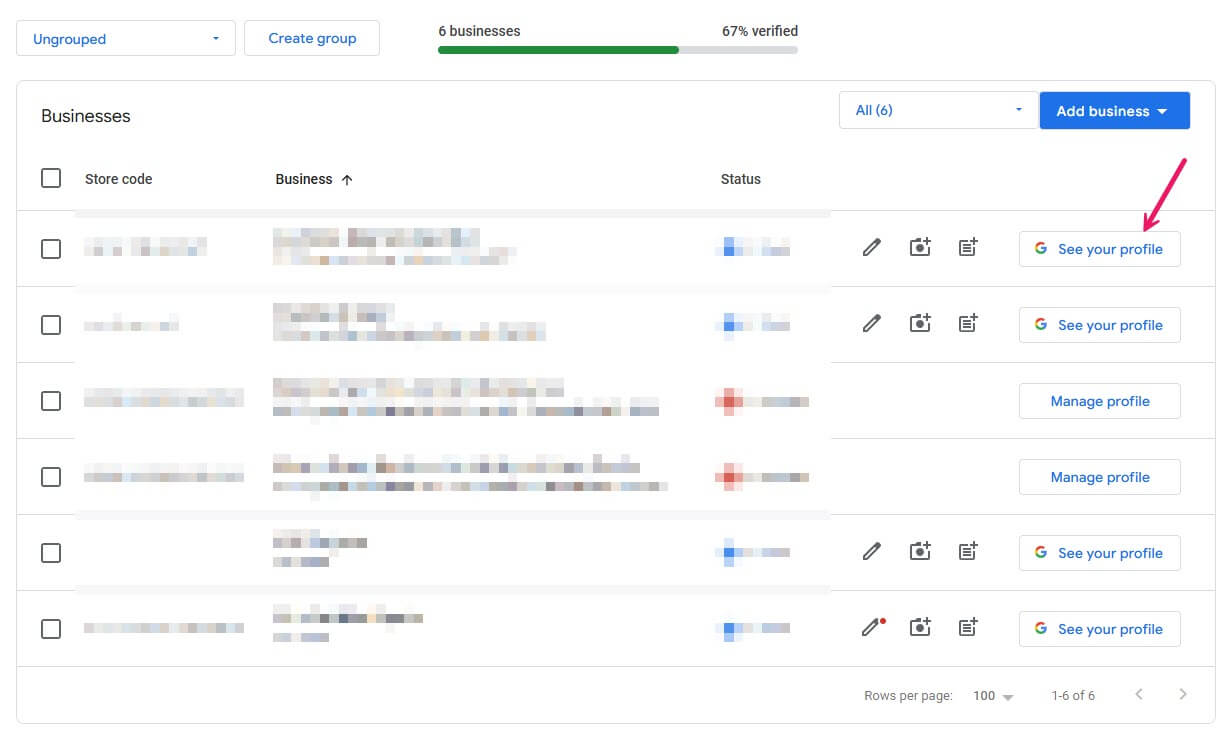
Step 2: Access your Business Profile
Select the Location profile that you would like to assign users to. Simply click on “See your profile”.
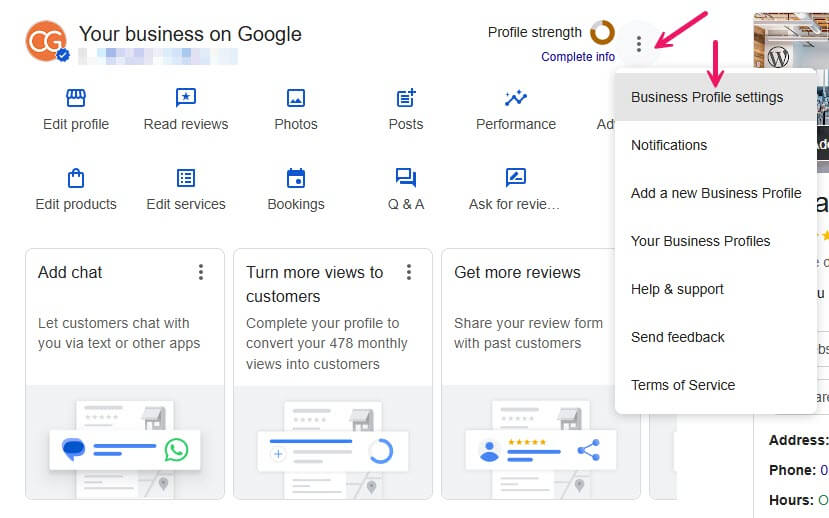
Step 3: Open Business Profile Settings
Click the three-dot menu (⋮) next to your business name.
Select “Business Profile settings” from the dropdown.
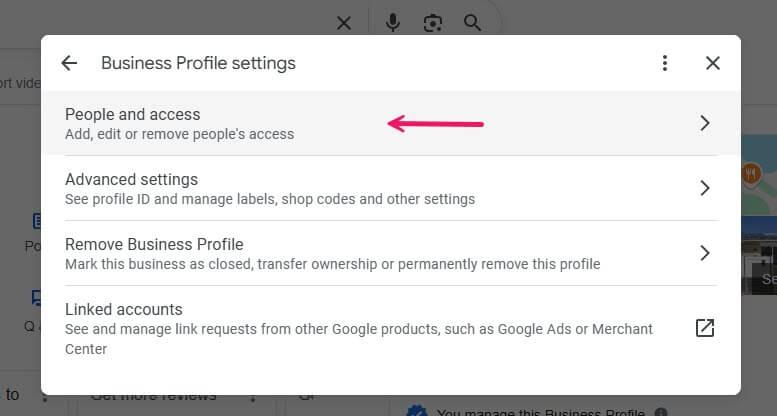
Step 3: Navigate to People and Access
- In the settings menu, click on “People and access”.
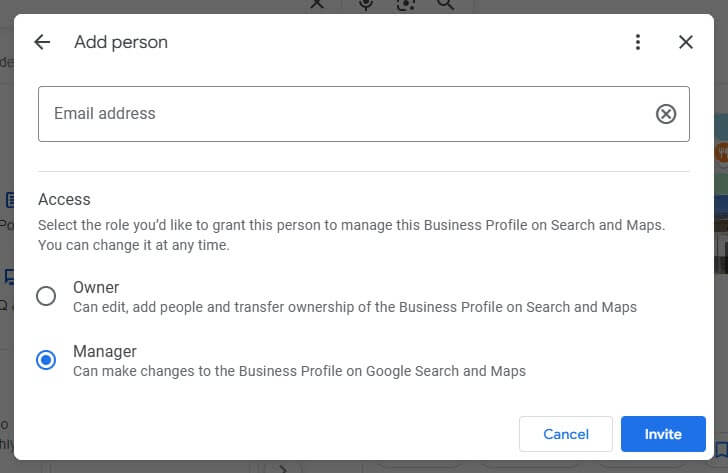
Step 4: Add a New User
- Click the “Add” button (usually a plus sign).
- Enter the email address of the person you want to add.
- Choose their role:
- Owner: Can manage all aspects of the profile, including adding/removing users.
- Manager: Can edit business information and respond to reviews but cannot manage users.
- Click “Invite”.
Step 5: Await Acceptance
- The invited user will receive an email invitation.
- Once they accept, they’ll have access based on the role assigned.
Note: Only verified owners can add or remove users. If you’re not seeing these options, ensure you’re signed in with the correct account.
For more detailed information, you can refer to Google’s official guide: support.google.com
Let me know if you need assistance with any other aspects of managing your Business Profile!
Tips:
- Only invite people you trust.
- Keep your owner/admin list updated if team members change.
- Regularly review who has access to ensure your listing stays secure.